
Experience our complimentary Google static map generator powered by Gemini and the Google Static Maps API.
Static Map Maker Instructions
Map Types
Choose from four map types: roadmap (default), terrain (physical relief), satellite, or hybrid (satellite with labels).
Marker Customization
Colors: Customize marker colors including blue, red, green, yellow, orange, purple, brown, black, and white.
Custom Icons: Use custom icons (up to 64x64px) by sharing the icon URL. Example: “Show Rome on the map using this custom marker: https://cdn.mappr.co/icons/star-icon.png”
Zoom Levels
Control map detail with zoom levels from 0-20. Specify in your prompt (e.g., “Make a map showing Tokyo at zoom level 5”) or request to “zoom in” or “zoom out.”
- Level 0: Entire world
- Level 1: World map perspective
- Level 5: Continent view
- Level 10: City view
- Level 15: Streets detail
- Level 20: Building level (maximum detail)
Visual Zoom Examples
World Map (Level 1)
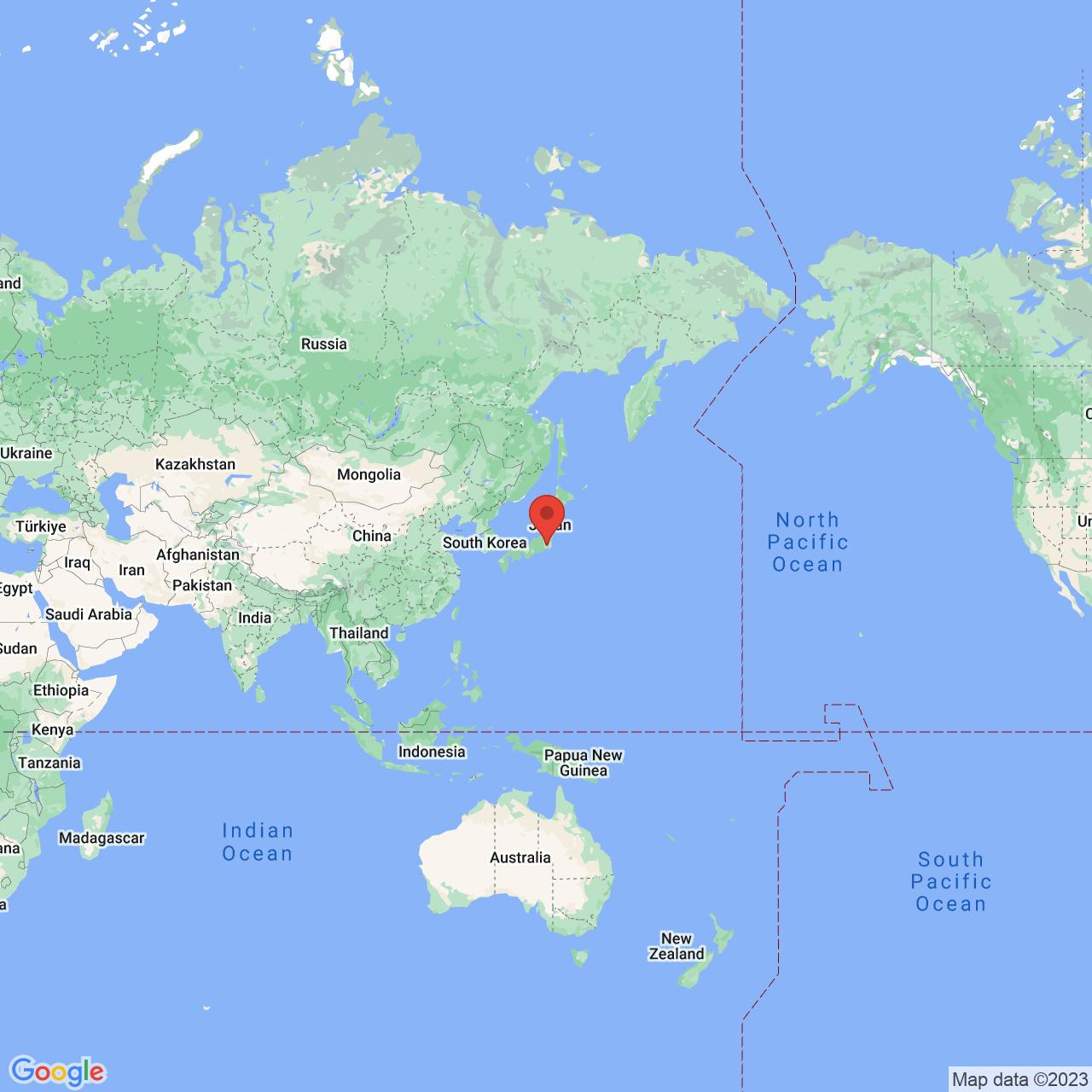
Continent View (Level 5)
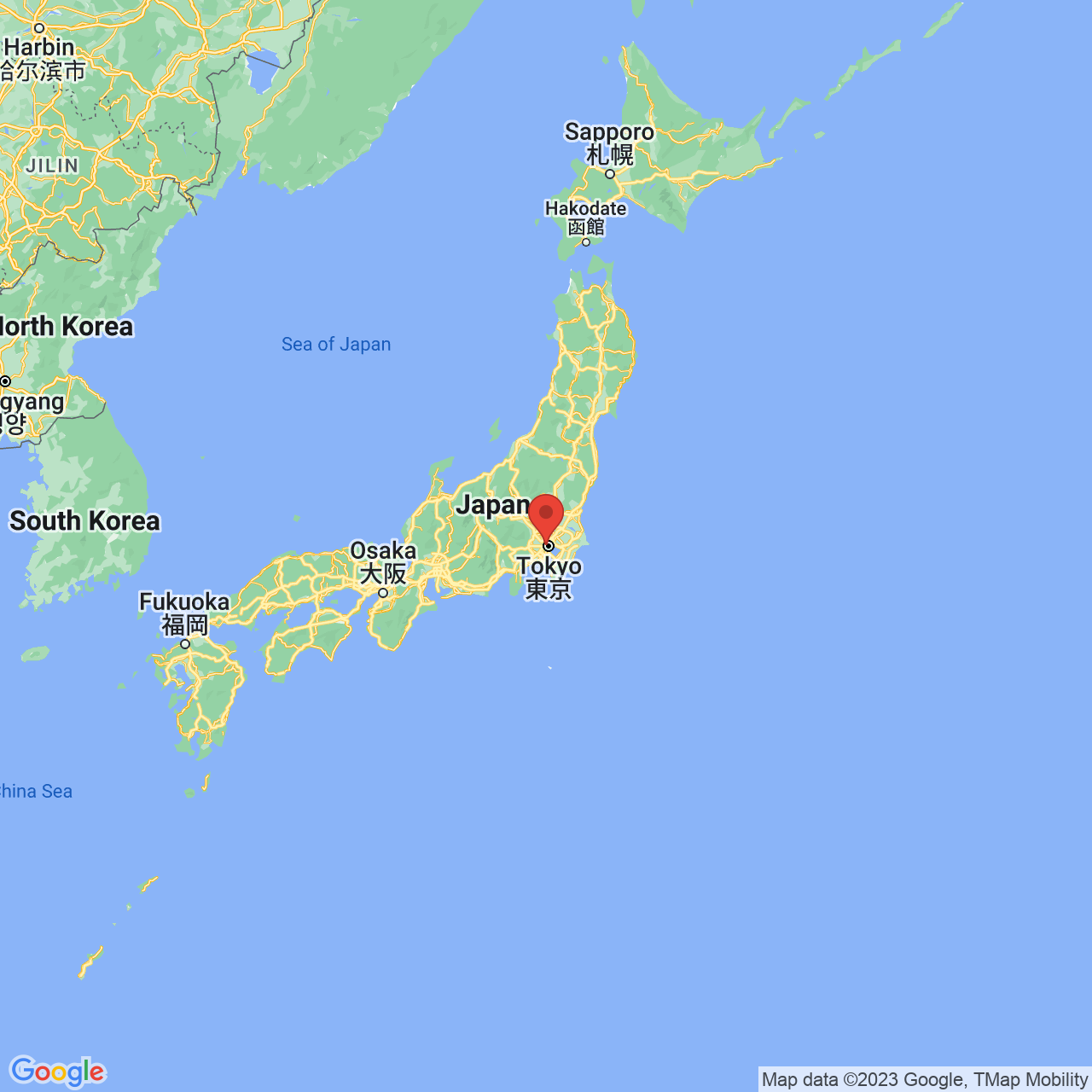
City View (Level 10)
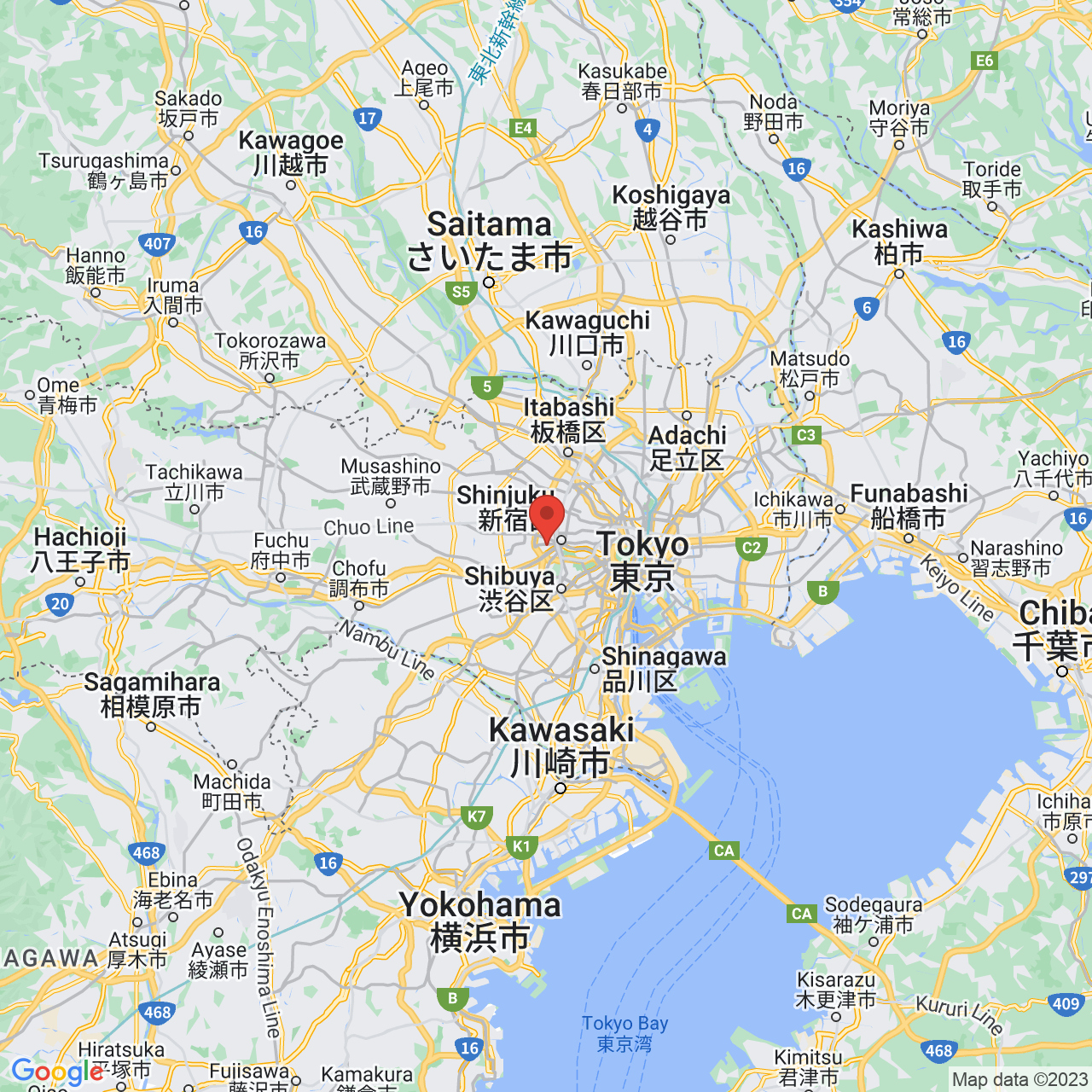
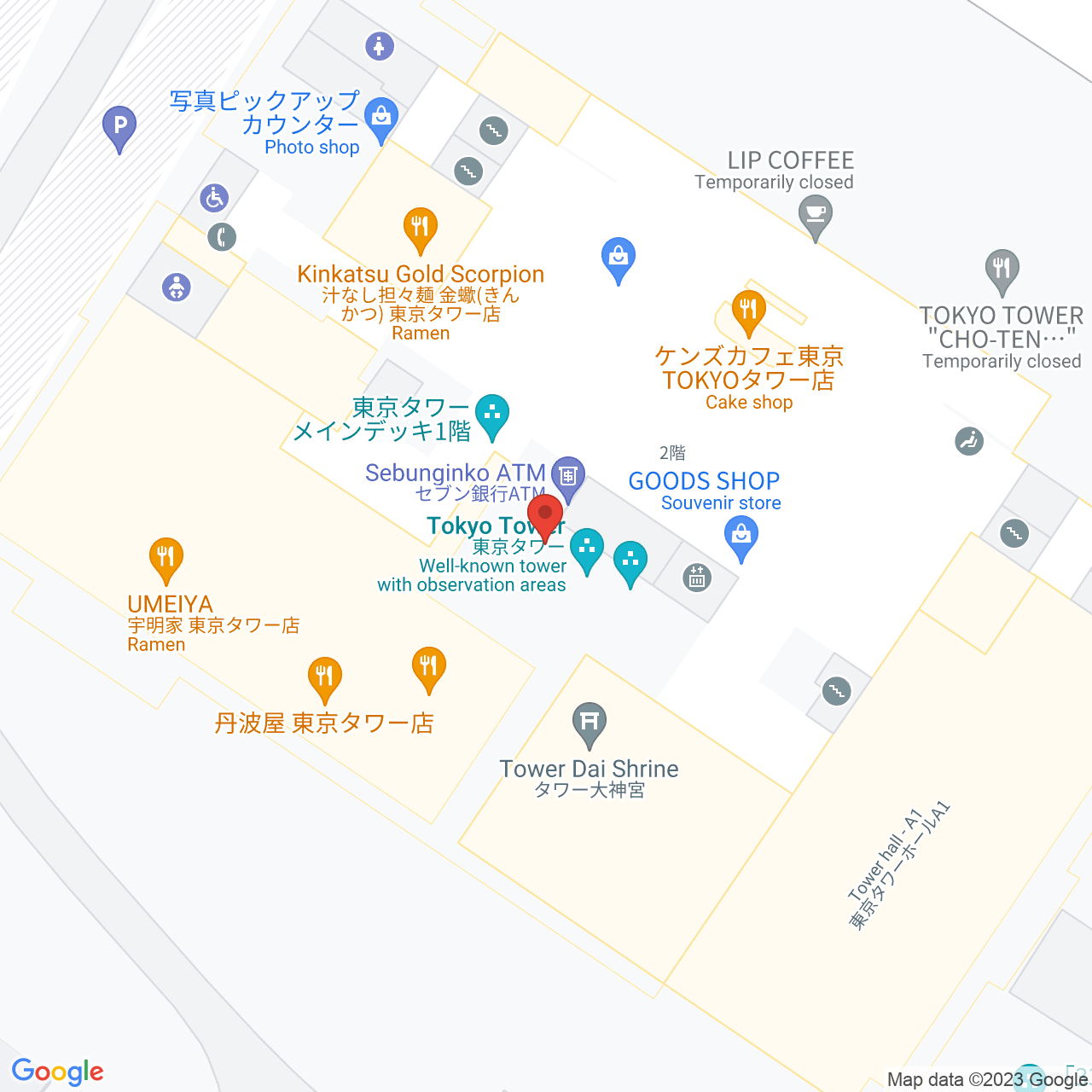
Streets View (Level 15)
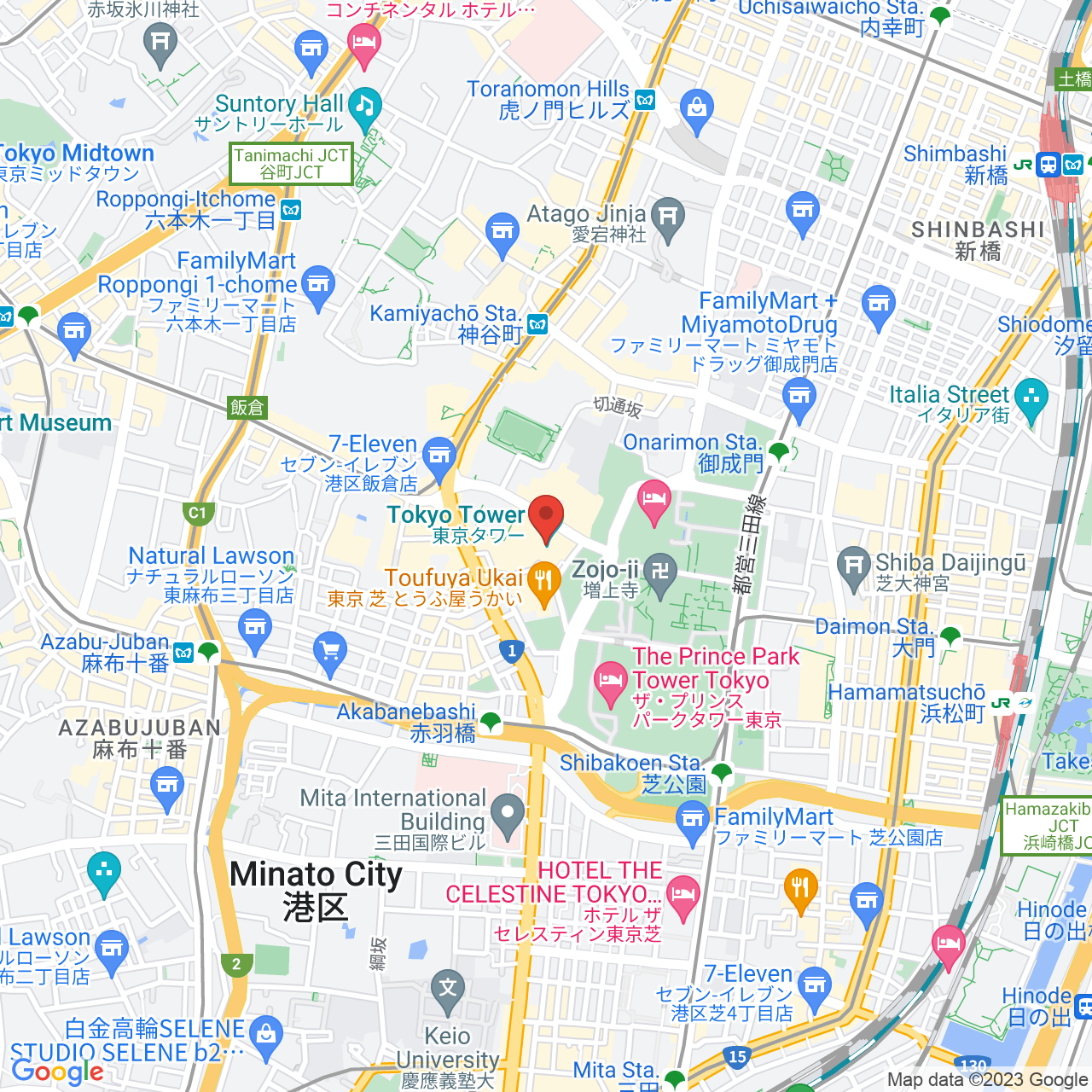
Buildings View (Level 20)
Custom Features
Customize map styling with natural language prompts:
- Simplify Roads: “Map with all roads displayed in a simplified manner”
- Color Water Bodies: “Map where all water bodies are colored blue”
- Highlight Parks: “Map that highlights parks in bright green”
- Hide POIs: “Map that hides all points of interest”
- Emphasize Highways: “Map with highways highlighted in yellow”
- Adjust Buildings: “Map where buildings have simplified visibility”
- Change Landscape Color: “Map with all landscapes colored in light brown”
- Highlight Transit: “Map that emphasizes public transit lines in red”
- Remove Labels: “Map with all labels removed for a cleaner look”
Combine multiple features: “Map of San Francisco with simplified roads, blue water, green parks, and a red marker on the Golden Gate Bridge.”
Smart Prompt Builder
Click “Show Prompt Builder” for quick access to map types, marker colors with visual indicators, zoom levels with descriptions, and common custom features. The builder automatically adds your selections to the prompt box.
Download & Share
Click “Download Map as PNG” to save your high-quality map image with a timestamped filename. Generated maps are standard Google Static Maps images that can be embedded anywhere.
Interpreted Parameters
Expand the “Interpreted Parameters” section below any generated map to see how the AI understood your prompt, including center location, zoom level, map type, marker details, custom styles, and the full Google Maps API URL.
Frequently Asked Questions
How does the AI understand my prompts?
The map generator uses Google’s Gemini AI to interpret natural language prompts. Simply describe what you want (location, markers, map type, zoom level, styling) and the AI will translate it into the correct Google Static Maps API parameters.
Do I need to know technical map parameters?
No! You can use natural language. For example, instead of specifying coordinates and zoom levels, just say “A satellite map of the Eiffel Tower in Paris” and the AI will figure out the rest.
Can I use multiple markers on one map?
Yes! Describe multiple locations in your prompt, like “A map of New York with red markers on Central Park, Times Square, and Brooklyn Bridge.”
What happens if the AI doesn’t understand my prompt?
If the map doesn’t match your expectations, try being more specific. Include the location name, desired map type, and marker details. You can also check the “Interpreted Parameters” section to see what the AI understood and adjust your prompt accordingly.
How do I use custom marker icons?
Include the icon URL in your prompt: “Show [location] on the map using this custom marker: [icon-url]”. The icon should be up to 64×64 pixels and accessible via HTTPS.
Why does the map center on the marker instead of the city?
The AI is configured to center maps on marker locations when markers are specified, ensuring the marker is clearly visible. This is intentional for better visibility of specific landmarks or locations.
What image format are the downloaded maps?
All maps are downloaded as PNG images with high quality suitable for web use, print, or presentations.
Are there any usage limits?
You can generate up to 100 maps per day for free on Mappr.co. Usage limits depend on your Google Maps API and Gemini API quotas. Check your API provider dashboards for current usage and limits.
Can I embed generated maps on my website?
Yes! The generated maps are standard Google Static Maps images that can be embedded anywhere. You can view the full URL in the “Interpreted Parameters” section below each map.
How accurate is the location recognition?
The AI uses Google’s location services to recognize place names, landmarks, and addresses. It works best with well-known locations, but can also handle coordinates if needed.
Ready to create your custom map? Start typing your prompt above!